What you'll build
You'll build an AI agent that runs every morning at 8:00, searches the news and emails you a short AI brief. It's built in n8n with Claude as the model, and it needs no code.
It's an agent, not a fixed script. A fixed automation runs the same steps in the same order every time. An agent reads its task, decides what to search and which tools to call, then writes the result.
The clock starts once your accounts are ready (see Before you start). The 20 minutes assume n8n Cloud. On a self-hosted n8n, setup takes longer, because Gmail needs your own Google OAuth credential first.
The 20 minutes at a glance
- Min 0–3, Step 1: add a schedule trigger.
- Min 3–9, Step 2: add the AI Agent with Claude and its instructions.
- Min 9–14, Step 3: give it two tools and run it.
- Min 14–16, Step 4: turn the brief into HTML.
- Min 16–20, Step 5: send it with Gmail and publish.
In a rush? Give this guide to your AI assistant, such as Claude, and ask it to set everything up with you step by step. It can explain each setting, check your choices and help when a step fails. Keep your API keys out of the chat: paste them only into n8n's credential fields.
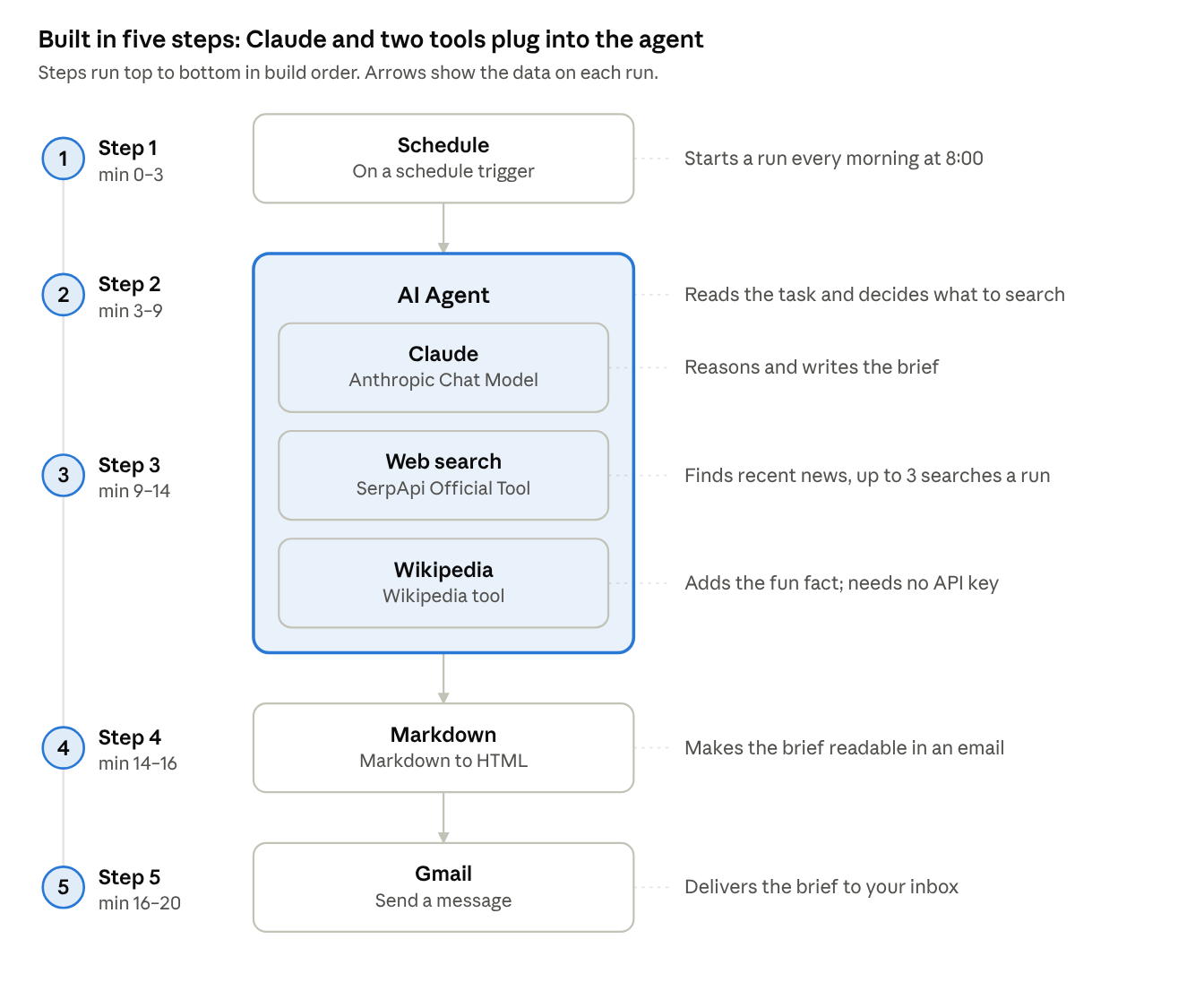
Claude and the two tools sit inside the AI Agent because they plug into its slots rather than running after it.
Before you start
Set up four things first. The 20 minutes start once they're ready.
- An n8n account. An n8n Cloud trial is the quickest start. A self-hosted n8n works too, but you need owner or admin rights to install one node in Step 3.
- A Claude model. On n8n Cloud there's nothing to set up: new accounts, trials included, start with a small balance of Gateway credits, which run Claude without an API key. On a self-hosted n8n, create an API key in the Claude Console and add prepaid credit. API usage is billed separately from a Claude subscription.
- A SerpApi account for web search. Sign up for free and copy your API key from the dashboard. The free plan includes 250 searches a month (as of October 2026). The instructions in Step 2 ask the agent to use at most three per run.
- A Gmail account. On n8n Cloud you connect it with one click. On a self-hosted n8n, you first create your own Google OAuth credential.
What it costs. On the Cloud trial, the build costs nothing to try: Claude runs on Gateway credits and SerpApi's free plan covers the searches. After that, you pay for n8n Cloud or your own server, plus the model's usage.
Treat every API key like a password. Anyone who has it can spend your credit.
Step 1Add a schedule trigger min 0–3
Every workflow starts with a trigger, the event that starts a run. This one starts on a clock.
- In n8n, click Create workflow and name it
Morning AI brief. - Click +, choose On a schedule and set:
- Trigger Interval: Days
- Days Between Triggers: 1
- Trigger at Hour: 8am
- Trigger at Minute: 0
- Click Execute step. The output panel shows test data: a timestamp, a readable date and a few more fields.
Each box you add after the trigger is a node. A node takes the data from the node before it, does one job and passes its result on.
Step 2Add the AI Agent with Claude min 3–9
The AI Agent node does the thinking. Below it are three slots: Chat Model (the model that reasons and writes), Memory and Tool. In this step you give it a task, instructions and a model.
- Click + after the schedule trigger, open AI and pick AI Agent.
- Set Source for Prompt (User Message) to Define below. With no chat window, the agent needs a fixed task for every run.
- Paste this into Prompt (User Message). Then replace
[date]by dragging Readable date from the input panel on the left:
Today is [date]. Write today's brief: the three most important AI and automation news stories from the last day, then one fun fact from Wikipedia about a pioneer of computing.
- Under Options, add System Message and replace its text with these instructions:
You write a short morning brief about AI and automation news.

Tools:
- "Web search" finds recent news. Use it at most 3 times per brief, one query per call.
- "Wikipedia" is for the fun fact.

Rules:
- Include only stories you found with Web search, each with its source link.
- Prefer stories from the last 24 hours.
- Never invent a story, a date or a link. If you find fewer than three stories, say how many you found.
- One plain sentence per summary. No hype.

Format the brief in Markdown:
## Top AI stories
1. **Headline**: one-sentence summary. [Source](link)
## Fun fact
One or two sentences from Wikipedia.
- Close the node. Click + under Chat Model and pick Anthropic Chat Model. In the credential field, choose Use Gateway credits on n8n Cloud, or create a credential with your Anthropic API key. Keep the default model.
Leave Memory empty. Memory lets an agent follow a conversation across several messages, and each morning's brief is a fresh task.
A good system message names the job, each tool and when to use it, and what the agent must never do. The rule against inventing stories matters most. Without it, an agent that finds nothing may make something up.
Don't run the agent yet. The AI Agent needs at least one tool, and you add two in the next step.
Step 3Give it two tools and run it min 9–14
Tools let the agent reach outside the model. Here it searches the web and reads Wikipedia. Without tools it can only write from what the model already knows, which doesn't include today's news.
- Click + under Tool, search for
serpapiand pick SerpApi Official Tool. If it's listed under More from the community, open it and click Install first. It's a verified node maintained by SerpApi. Don't use the older SerpApi (Google Search) tool, which is deprecated. - Create a credential with your SerpApi API key.
- Next to Search Query (q), click the button that lets the model fill in the value. The field then reads Defined automatically by the model.
- Rename the node to
Web search. The agent reads tool names, so they should match the system message. - Click + under Tool again and add Wikipedia. It needs no key and no settings.
- Open the AI Agent and click Execute step.
The run takes a little while. Open the Logs panel at the bottom of the canvas to see each step: the agent calls Web search with queries it chose itself, calls Wikipedia, then writes the brief in Markdown.
Check the result before you go on. Every story should have a source link, and each link should open the story it describes. Search results aren't always dated, so now and then a story may be older than a day.
Step 4Turn the brief into HTML min 14–16
The agent writes Markdown, but an email needs HTML to show headings and links properly. Sent as it is, Markdown arrives as a wall of symbols. One node converts it.
- Click + after the AI Agent, open Data transformation and pick Markdown.
- Set Mode to Markdown to HTML.
- Drag the agent's output field from the input panel into the Markdown field.
- Click Execute step and check that the output panel shows HTML.
Step 5Send it with Gmail and publish min 16–20
The last node delivers the brief. Then you check the timezone and switch the workflow on.
- Click + after the Markdown node, pick Gmail and choose Send a message.
- Connect your account. On n8n Cloud, click Sign in with Google. On a self-hosted n8n, use the Google OAuth credential you created.
- Fill in the fields:
- To: your own email address.
- Subject: type
AI brief:, then drag Readable date from the schedule trigger in the input panel. - Email Type: HTML.
- Message: drag in the HTML result from the Markdown node.
- Under Options, add Append n8n Attribution and turn it off. Otherwise every email ends with "This email was sent automatically with n8n".
- Click Execute workflow. Every node turns green, and the brief lands in your inbox.
- Open the workflow settings and check Timezone. The schedule runs on the workflow's timezone, or on the instance's if none is set. A self-hosted n8n defaults to New York time.
- Click Publish, then Publish again in the window that opens. Older n8n versions use an Active toggle instead.
The workflow now runs every morning at 8:00. Each run appears in the workflow's Executions tab, with the data every node passed on.
Common mistakes and quick fixes
Most first builds break in the same few places. Find your symptom in the table.
| Symptom | Cause | Fix |
|---|---|---|
| The agent invents a story or a link | Nothing in the instructions forbids guessing | Keep the "never invent" rule in the system message |
| The agent never calls a tool | The tool's name doesn't say what it does | Name each tool by its job, and say in the system message when to use it |
| SerpApi Official Tool isn't offered | It's a verified community node, and only owners and admins can install it | Ask the instance owner to install it. On a self-hosted n8n, check that verified community nodes are enabled |
| It works in the editor but never runs on its own | The workflow isn't published | Click Publish |
| The brief arrives at the wrong hour | The workflow runs on another timezone | Set Timezone in the workflow settings |
| You can't connect Gmail on a self-hosted n8n | One-click Google sign-in exists only on n8n Cloud | Create your own Google OAuth credential, or send the brief with the Telegram node instead |
| The email is a wall of symbols | The Markdown wasn't converted, or Email Type is Text | Check the Markdown node and set Email Type to HTML |
| Runs use more credit than expected | Search results are long, and the model reads all of them | In the SerpApi tool, click Add Field, choose JSON Restrictor and enter organic_results |
| Claude stops working on n8n Cloud | The Gateway credits ran out | Add credit on a paid plan, or switch the model to your own Anthropic API key |
When a run fails, open Executions, select the run and click Debug in editor (for a successful run, Copy to editor). n8n loads that run's data into the editor, so you can fix the problem and run it again with the same input. On a self-hosted n8n, this needs the free registered Community edition or a paid plan.
Measure what it saves
The Automated Hour counts only time it has measured, never estimates. Do the same with this build.
- Before you rely on the brief, time your usual morning news check on three different days.
- After a week of briefs, time what's still left to do by hand each morning.
- The difference is your real number, and it's the only one worth quoting.
What's next
Change one thing at a time, and run the workflow after each change.
- Stop repeats. Log each brief's stories in an n8n Data Table, and have the agent check the log before it writes.
- Deliver it where you read. Swap Gmail for the Telegram or Slack node.
- Add an approval step before anything goes to other people. Gmail and Telegram can send a message and wait for your reply before the workflow continues.
- Try n8n's Agents feature. Since September 2026, n8n also offers separate agents that you set up once and use from several places. The AI Agent node in this guide is still the way to put an agent step inside a workflow.
Get the next build
New automations are posted in our Telegram channel, each with the time it saves, measured before and after: t.me/theautomatedhour
Latest version of this guide: theautomatedhour.com/guide · Questions: [email protected]
Version 1.0, updated 6 October 2026. This guide was written with AI help. © 2026 The Automated Hour.